KRUSH2
product page: www.tritik.com/product/krush
version: 1.0.1
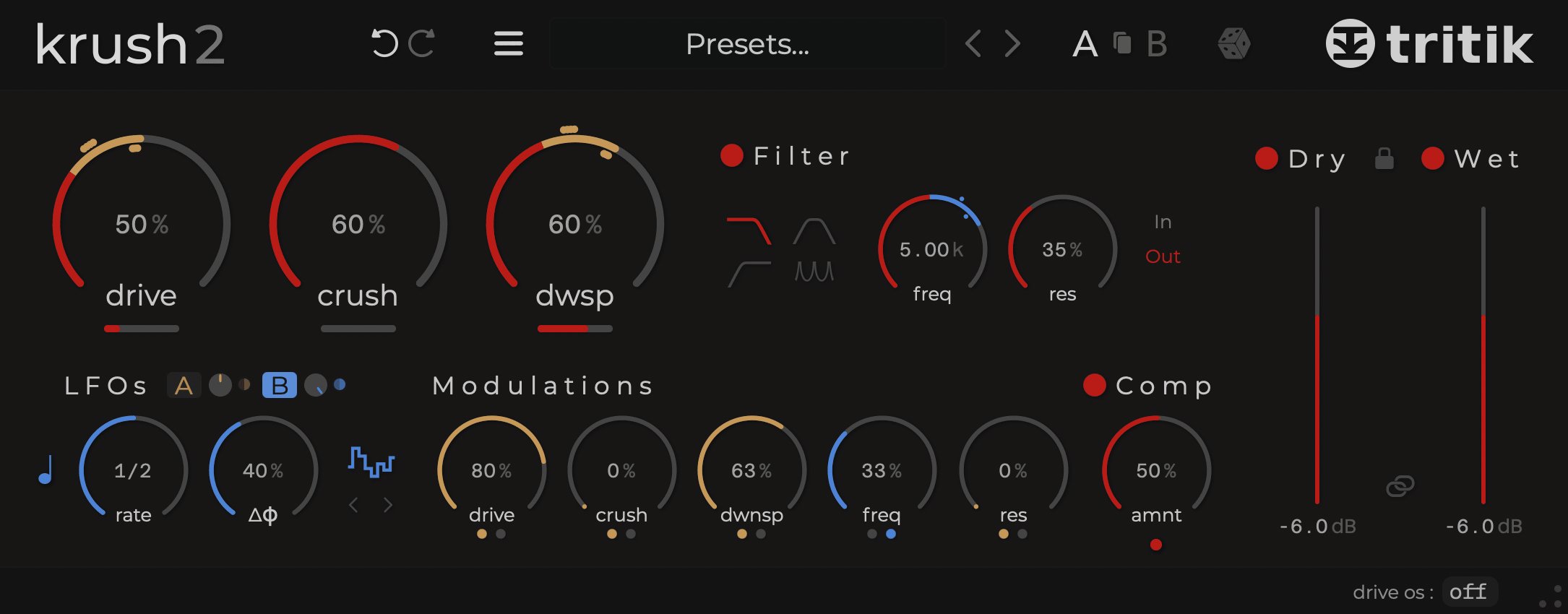
Table of Contents
1. Overview
Krush2 is a bitcrusher plugin combining bit-depth reduction, sample-rate reduction, filtering, and compression. Use it subtly to add texture and density, or push it to extremes for aggressive lo-fi destruction.
Its bit crushing and downsampling algorithms are complemented by a warm drive stage, analog-modeled resonant filters, and a modulation section with two stereo LFOs.
The result is a wide sonic palette, from dirty digital effects to crunchy modulated colours, with all the classic and more unusual bitcrusher sounds in between.
2. Installation
After downloading from www.tritik.com/product/krush,
unzip the files and run the installer.
During installation, select the desired plugin formats (AU, VST3,
AAX).
Once installed, Krush2 will appear in your DAW’s audio effects
list.
2.1 System Requirements
Windows
- Windows 10 or 11 (64-bit)
- Dual-core processor or better
- 4 GB RAM minimum
- Windows-compatible audio interface
- VST3 or AAX compatible host
macOS
- macOS 10.15 or later
- Dual-core processor (Apple Silicon recommended)
- 4 GB RAM minimum
- AU, VST3, or AAX compatible host
2.2 Licence & Activation
Krush2 runs as a fully functional demo: all controls are available, but the audio fades out from time to time. Purchase and import a licence to remove the fades.
ⓘ KrushPro owners: Krush2 is free for you. On launch the plugin auto-scans for a valid KrushPro licence and unlocks Krush2 if found. If it isn’t detected automatically, use Import Licence and point to your KrushPro key file to activate.
Activation
After purchasing a licence at www.tritik.com/product/krush :
- Click the
Import License...button in the activation dialog. - Locate your licence file
(
krush2-license.tkk). - Krush2 unlocks immediately.
3. Controls
3.1 Main Controls
3.1.1 Drive
The Drive section controls the amount and character of distortion applied to the signal.
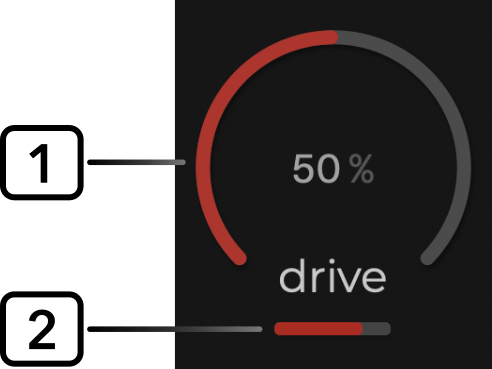
- [1] Drive: Sets the amount of saturation. Higher values push the drive stage harder.
- [2] Character: Adds extra saturation and harmonics to the drive, making the distortion sound more forward and aggressive. It becomes more pronounced as Drive increases.
ⓘ As a gain stage, increasing Drive raises the output level. You may need to compensate by adjusting the Wet level.
3.1.2 Crush
Bit-depth reduction stage.
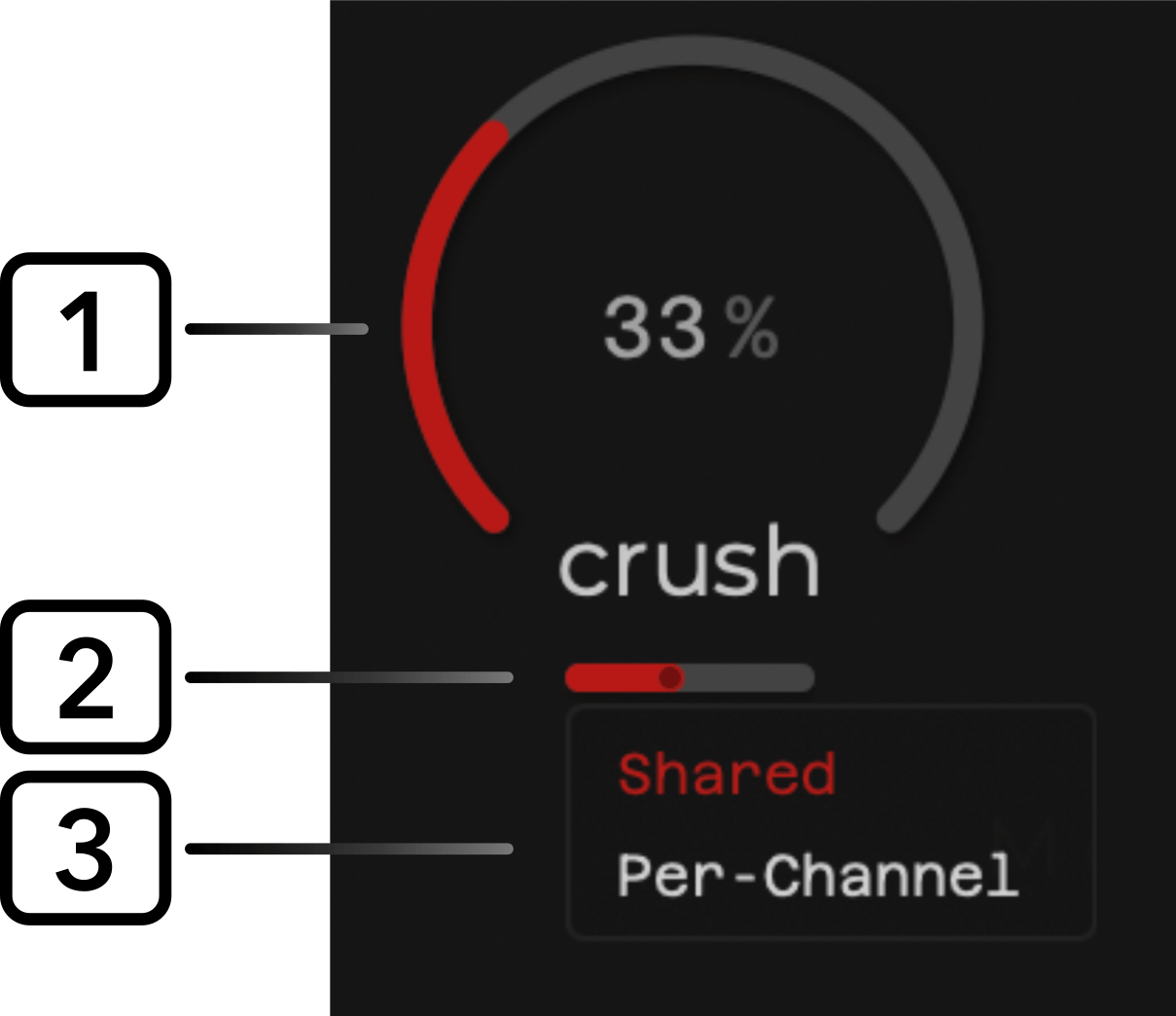
- [1] Crush: Amount of bit-depth reduction. Higher values mean harsher quantization.
- [2] Dither: Adds noise before quantization to reduce quantization artifacts; higher values add more audible grit.
- [3] Channel Mode (right-click the Dither slider to open the menu): Shared uses the same dither noise in both channels; Per-Channel uses independent dither noise in each channel for a wider stereo image.
ⓘ Dither can be used subtly to reduce quantization artifacts, or pushed further to introduce noise as a creative effect, especially with higher Crush settings.
3.1.3 Downsampling
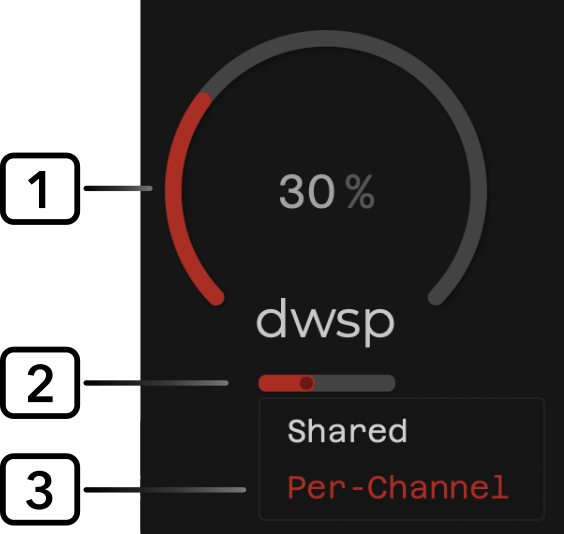
- [1] Downsample: Reduces the effective sample rate, emphasizing aliasing and sample-and-hold artefacts.
- [2] Jitter: Randomizes the sampling clock.
- [3] Channel Mode (right-click the Jitter slider to open the menu): Shared applies the same jitter to both channels; Per-Channel applies independent jitter to each channel for extra stereo width.
3.2 Filter
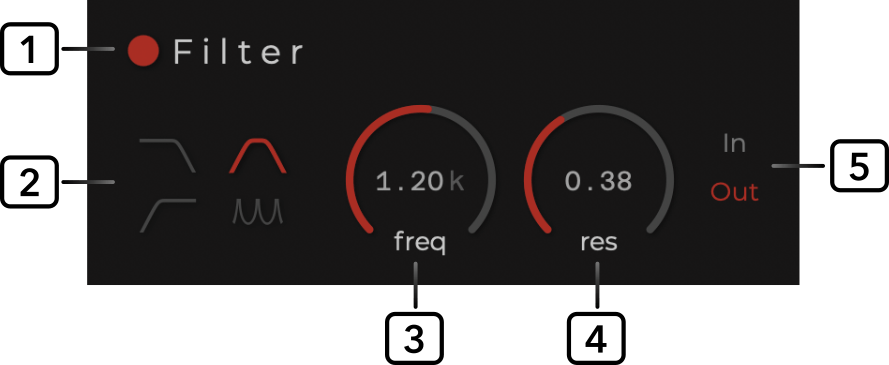
- [1] Filter Toggle: Turns the whole filter section on/off.
- [2] Filter Type: Selects between Low-Pass, High-Pass, Band-Pass, Comb.
- [3] Freq Knob: Sets the filter’s cut off frequency.
- [4] Res Knob: Sets the filter’s resonance.
- [5] In/Out Tab: Positions the filters either before the main processing section or after it.
3.3 Modulation
The Modulation section controls how the internal LFOs animates Krush’s main parameters. Combine depths with waveform and phase choices for anything from subtle movement to extreme wobble.
3.3.1 LFOs
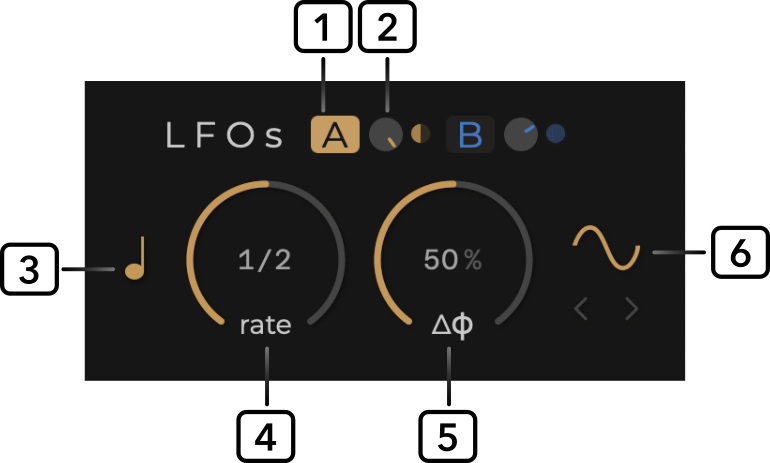
- [1] A/B Buttons: Select which LFO controls are shown (A or B).
- [2] Global Depth Knob: Scales the overall modulation depth of the LFO across all destinations. The small LED displays the current left/right modulation values for quick visualization.
- [3] Sync / Free Toggle: Switches between
free-running Hz and host-synced timing. Only the relevant rate
control is shown at a time.
Free Rate Knob: Sets LFO speed in Hertz when in Free mode. - [4] Synced Rate Knob: Chooses musical note values (including dotted/ternary) when in Sync mode.
- [5] Stereo Phase Offset: Offsets the right-channel LFO phase for stereo movement.
- [6] Waveform Selector: Cycle through Sine, Square, Triangle, Random, Ramp Down, Ramp Up using the waveform button or the left/right arrows.
3.3.2 Modulations Depth
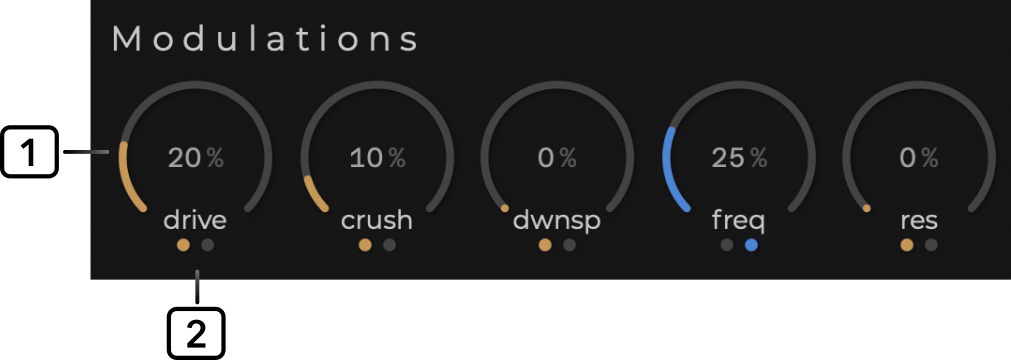
- [1] Mod Depth Knobs (Drive / Crush / Downsample / Filter Frequency / Filter Resonance): Each knob sets how much the LFO affects its target. Filter modulation depths are disabled when the filter is bypassed.
- [2] LFO Selection Buttons: Choose which LFO (A or B) modulates each parameter. Each parameter can be modulated by one LFO at a time.
ⓘ KrushPro includes additional modulation sources such as envelopes, sequencers, and combined modulation.
3.3.3 Modulation Feedback
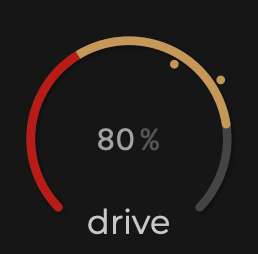
When modulation is active on a parameter, the knob shows extra
visual feedback.
A secondary coloured arc indicates the portion of the knob’s range
currently animated by the LFO, while moving dots show the
instantaneous LFO positions.
The outer dot represents the left channel, and the inner dot represents the right channel. This reflects the stereo nature of the LFOs, and is affected by the ΔΦ (Stereo Phase Offset) parameter.
3.4 Compressor
The compressor sits after the distortions and filter stages.
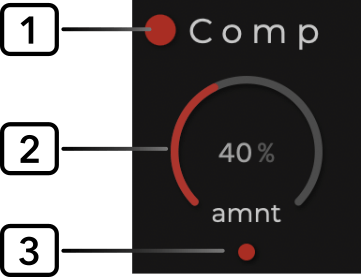
- [1] Comp Toggle: Enables/disables the compressor.
- [2] Amount: Compression strength. Higher values mean heavier gain reduction and punch.
- [3] Phat Mode: Adds a fatter, more saturated compression character.
3.5 Mix & Output
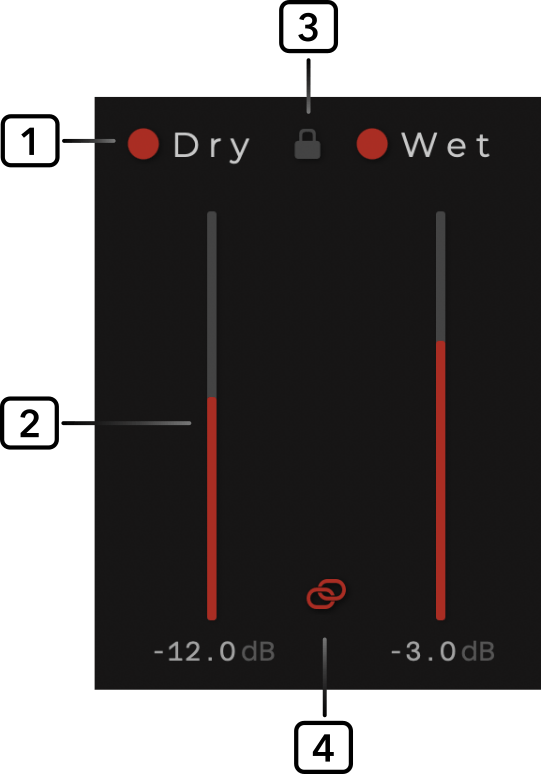
- [1] Dry/Wet Toggles: Enable or disable each path independently; disabled path are grayed out and removed from the output mix.
- [2] Dry: Sets the dry path level. If the Dry
toggle is off, the dry path is muted and the slider is
disabled.
Wet: Sets the processed (wet) path level. If the Wet toggle is off, only the dry path is heard. - [3] Lock Icon: Preserves the current Dry/Wet levels and their On/Off states when switching presets.
- [4] Link Icon: Maintains the Dry/Wet dB offset; when linked, moving one slider moves the other by the same offset (link responds only to user gestures, so host automation won’t move the other slider).
Tip: Use a partial blend (not 100% wet) to keep transients and low-end punch while adding character from the processed path.
3.6 Oversampling
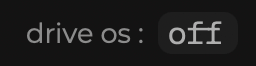
- Drive Oversampling: Sets the oversampling factor for the Drive stage (Off, x2, x4, x8). Higher values reduce aliasing at the cost of CPU.
4. Presets and Utilities

4.1 Presets
- [1] Burger menu: Opens the main utility menu with Save, Save As…, Init, Manual, and the Theme submenu.
- [2] Preset name button: Opens the preset browser for loading presets from the user and factory preset folders.
- [2] Right-click the preset name button: Opens a contextual menu with Copy to clipboard, Paste from clipboard, Set as Default Preset, and Show preset in Finder/Explorer.
ⓘ Krush1 preset import: On launch, Krush2 offers to import any user presets it finds in your Krush1 folder. Confirm to copy and convert them into the Krush2 user presets directory, preserving names and subfolders.
4.2 Utility Controls
- [3] A/B Slots + Copy: Instantly compare two states of the plugin. Use A/B to flip between them; hit Copy to duplicate the current slot to the other.
- [4] Undo / Redo: Step backward or forward through recent parameter changes.
- [5] ⚄ Dice: Randomizes while skipping Dry/Wet levels and toggles, Filter On/Off, LFO Sync/Free, Compressor On/Off, and Oversampling.
4.3 UI Theme
The burger menu gives access to a Theme submenu where you can select a colour theme.
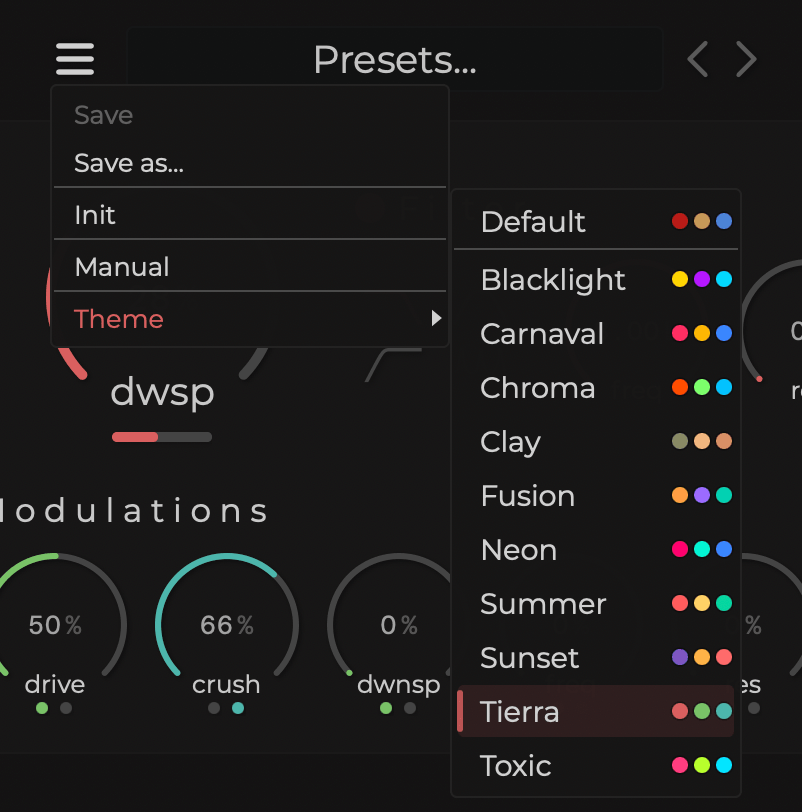
Custom Themes
You can add custom themes by placing XML files in the following folders:
macOS
~/Library/Application Support/Tritik/Krush2/themes/
Windows
C:\Users\<username>\AppData\Roaming\Tritik\Krush2\themes\
A Krush2 theme is a basci XML file that defines three colours:
<theme
    mainColour="0xFFFFD500"
    lfoAColour="0xFFB517FF"
    lfoBColour="0xFF00D9FF"/>
Colours use 32-bit ARGB format (0xAARRGGBB).
The file name is used as the theme name in the plugin.
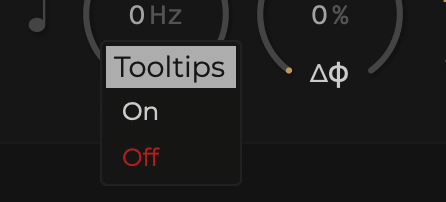
4.4 Tooltips
When you hover over a control, a tooltip is displayed in the
plugin footer.
To disable tooltips, right-click the footer to open the menu, then
turn them off there.
Enjoy Krush2!